How to Claim Your Business on ChatGPT (Nov 2026 Guide)
How do you claim your business profile in ChatGPT's new Business Hub, and what do you actually get once OpenAI approves it?

Claim your business on ChatGPT for the data, not the ranking. A claimed profile does not lift you in ChatGPT's answers, but it does show you OpenAI's own count of how often ChatGPT sent people to your website and how many clicked. We have claimed two sites and have a third stuck on a bug. This guide covers what worked, with screenshots, as of November 2026.
At a glance
| Question | Answer |
|---|---|
| Where | chatgpt.com/business-hub |
| Time | Under an hour, start to approval. Our ID review took about 10 minutes. |
| Cost | Free. Works on a free ChatGPT account. |
| You need | Access to your domain's DNS or an email inbox on your domain, plus a government-issued ID and your business's registered legal name |
| Who can claim | Owners or authorized reps of a business with a website. Local stores can only claim existing US listings. |
| What you get | Edit your profile, see weekly mentions and website clicks, invite your team or agency |
| What you don't get | Any boost in ChatGPT's answers |
| Known bugs | Invites can error, the page does not refresh on approval, and some submissions fail outright |
The steps:
- Find or create your business in the Business Hub.
- Verify the business by DNS record, email code, phone or Shopify.
- Verify yourself with Persona (government ID).
- Fill in the profile.
- Invite your team or agency.
- Read your insights.
Step 1: Find or create your business
Go to chatgpt.com/business-hub and click Add. You get a single search box.
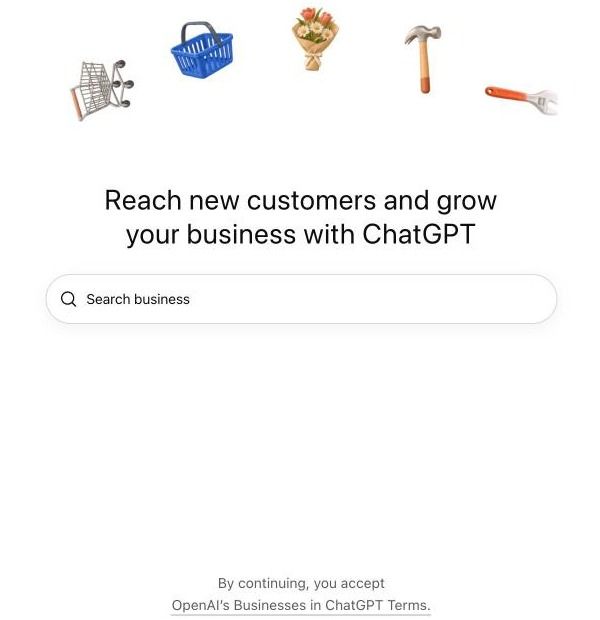
Search for your name or domain. Local businesses appear as map-style listings with an address. Most online businesses have no listing yet, so pick the top row, Create '[your domain]'.
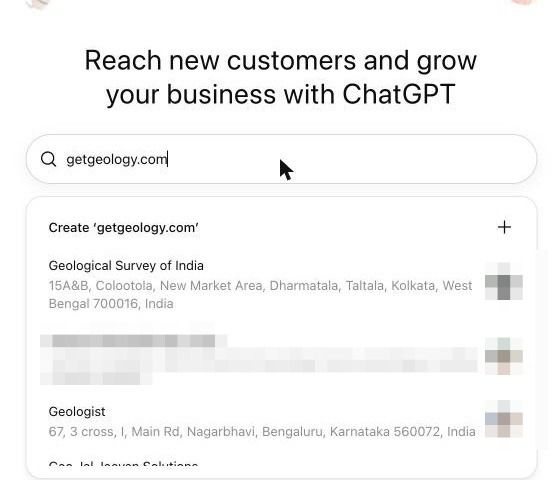
A listing showing Contact support instead of a claim option is locked. Use that button to request access.
Step 2: Verify the business
If you clicked Create
ChatGPT runs a six-screen setup with a live preview on the right:
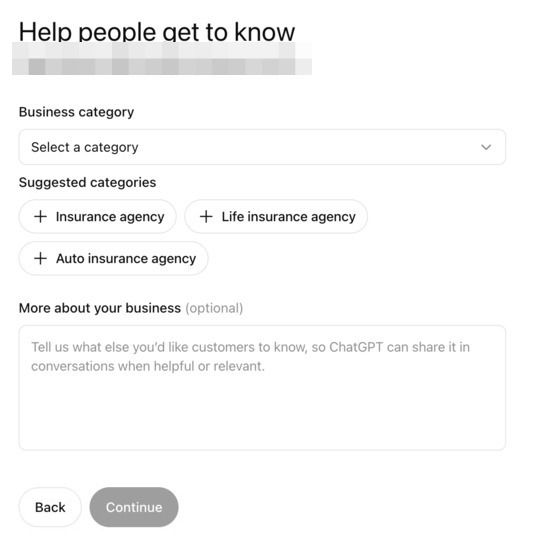
- Business category and an optional description
- Phone and email (both optional)
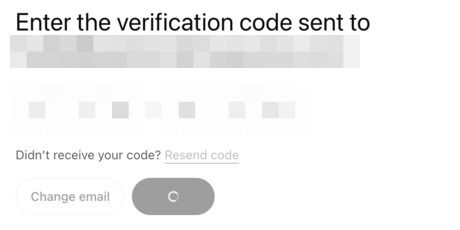
- A code sent to that email, which is your business verification
- Delivery policy
- Return policy
- Submit
Use an email on your own domain that you can actually read, because the code goes there (address and code hidden below).
The delivery and returns questions are written for shops. Service businesses should answer as plainly as they can. Everything is editable later.
If you are claiming an existing listing
Pick one of the methods ChatGPT offers: a code by SMS or call to the business phone, a code to the business email, a DNS TXT record, or connecting a Shopify store.
The DNS record is the most reliable for online businesses. OpenAI's help article does not show the format, so here it is from one of our live domains:
| Field | What to enter |
|---|---|
| Type | TXT |
| Name / Host | openai-business-profile |
| Value | openai-business-profile= followed by your token |
| TTL | Default |
- Do not double the domain. Most DNS panels add it for you, so enter only openai-business-profile as the host.
- Check before you click Verify domain. Run dig +short TXT openai-business-profile.yourdomain.com or use any DNS lookup site.
- Do it in one sitting. The token expires, and guides report anywhere from 30 minutes to a day.
No inbox on your domain?
If your DNS is on Cloudflare, turn on Email Routing and forward hello@yourdomain.com to your Gmail. It is free and takes five minutes. Make sure the rule is set to forward. A rule set to Drop accepts mail silently and you never see the code.
Step 3: Verify yourself with Persona
OpenAI also verifies the person, through Persona. Until it approves you, you cannot edit the profile or see insights. From the profile overview, choose Complete verification with Persona. You need:
- A government-issued ID
- The business's legal name exactly as registered, with any trading name entered separately as "doing business as"
- Possibly registration details or proof you represent the business
Our review took about ten minutes. The page does not update when it finishes, so reload it. OpenAI also emails you a message titled "Your business has been added to ChatGPT". The blue verified check appears only after Persona approves you.
Step 4: Fill in the profile
Click Edit business info. The tabs are About, Contact, Photos, Delivery and Returns.
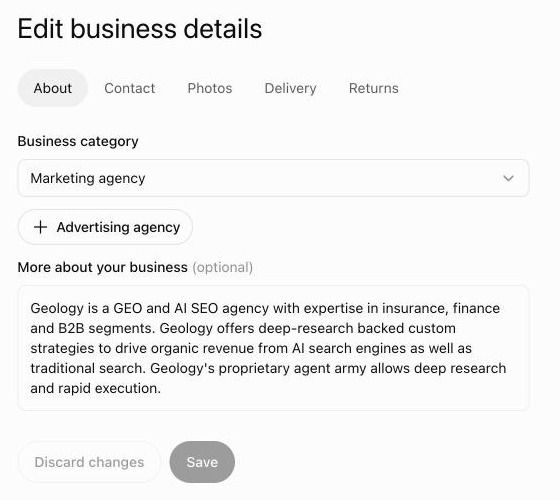
- Category: pick the closest primary one and add secondary categories with the plus button.
- Description: write plain facts about who you serve, what you do and where. ChatGPT reads it as a source, so specifics beat slogans.
- Review: OpenAI checks edits before they go live, which can take a while.
Step 5: Invite your team or agency
Click Invite at the top right of the profile and add an email.
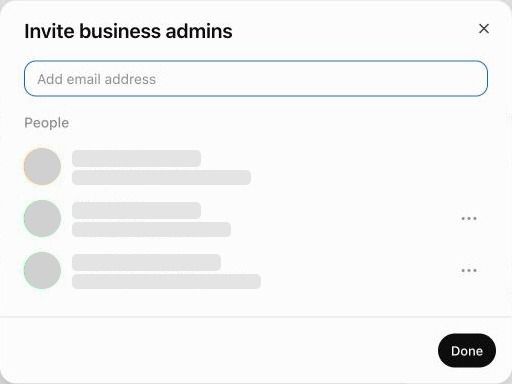
- Invites often error. Reloading the page a couple of times and retrying worked for us, but it is hit or miss. Check the person appears in the list.
- The invitee gets no email. Tell them yourself and send them the Business Hub link.
- Use the email they sign in to ChatGPT with. If you are unsure which one, invite both.
- Agencies: have the client do Steps 1 to 3 (Persona needs their ID), then invite you.
Step 6: Read your insights
Brand insights shows two numbers for the last 7 or 28 days. Mentions counts answers where ChatGPT referenced your website, and your brand name alone does not count. Website clicks counts how many people clicked through.
Our two profiles, same week:
| Site | Mentions | Clicks | Click rate |
|---|---|---|---|
| Geology (B2B agency) | 761 | 3 | 0.4% |
| A Jaipur city guide we run | 3,320 | 124 | 3.7% |
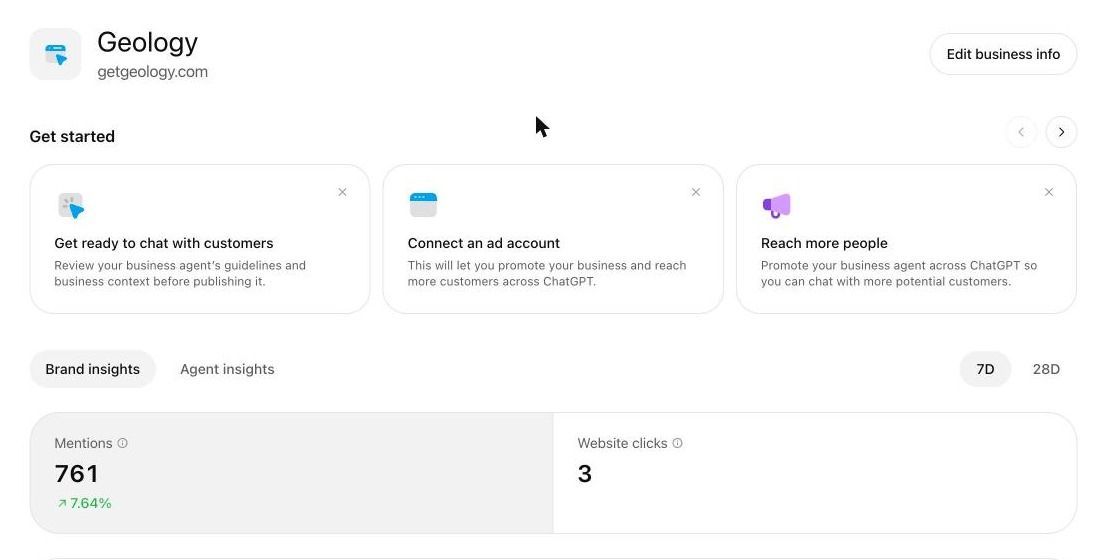
The Top 5 discovery topics chart explains the gap. Over half of Geology's mentions come from vendor comparisons, where ChatGPT lists several agencies and nobody leaves the chat. Travellers want the page with the details, so they click.
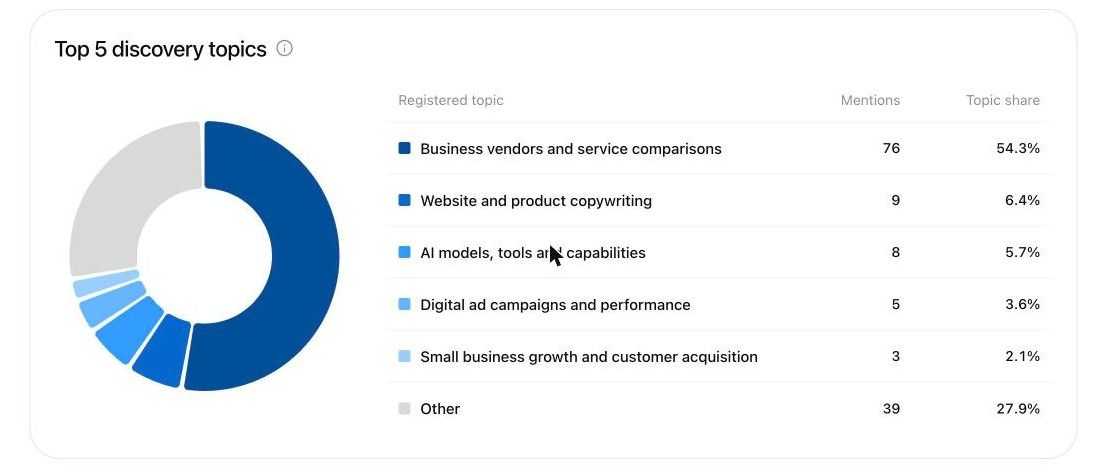
A blank metric means the number is below OpenAI's reporting threshold, not zero. The Website access card further down shows whether your domain verification is still confirmed.
Known issues (November 2026)
Submissions that fail. On one of our sites the Create setup passed every screen, including the email code, then failed at Submit with "We couldn't confirm your submission".
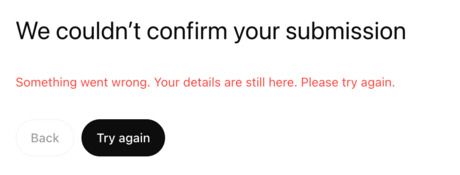
Try again gave the same error. The business now sits in the list as a Draft, and opening it shows the same error. Restarting from scratch did not help, and the domain verification lapses while you retry.
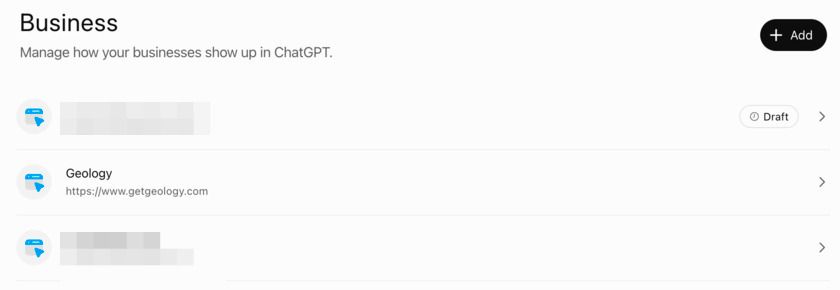
If it happens to you: keep your description in a document so you do not lose it, retry a few times, then contact support with a screenshot.
Silent pages. Neither the Persona result nor a failed invite updates the page. Reload before assuming something is stuck.
What to do next
Claiming tells you how often ChatGPT sends people your way. It does not tell you why a competitor wins the comparison, or how you show up in Gemini, Perplexity or Google AI Overviews. For that, see our guides to tracking AI citations and AI referral traffic, or our GEO optimization service.